
Processing a single photo requires little effort, but the situation changes with a digitized photo album or a larger collection. Selecting, colorizing, and saving each image one by one quickly turns into repetitive work. Batch colorization groups these steps for an entire image set. Multiple black-and-white photos can be selected once and then processed in sequence without restarting the colorization process for every file. MKGPics AI BATCH PHOTO COLORIZER is AI photo editing software for black-and-white and faded photos. The application processes a prepared image list file by file and saves the resulting colorized versions in the selected output folder. Every photo remains a separate file. The focus is therefore on processing complete image series rather than manually colorizing one photograph at a time.
Colorize Black-and-White Photos as a Complete Series
Single-image editing repeats the same sequence for every file: open the photo, start colorization, save the result, and load the next image. With twenty, fifty, or more photographs, a large part of the work comes from repeating these actions. Batch processing handles the transition between files and performs the same task across the complete selection. The photographs are still processed independently. Ten source files produce ten separate colorized files that can later be opened, archived, or edited individually. Batch processing does not change the file structure; it combines the operating steps for related photos into one processing run.
Colorize Multiple Photos with AI
After the batch starts, the application works through the selected image list in sequence. A new colorized version is calculated for each photograph, saved, and followed by the next file. The user does not need to restart the process between images. This workflow is intended for collections where many photographs require the same type of processing. The colors are generated from an automated interpretation of the source image. AI photo colorization should not be confused with a verified reconstruction of historical colors. A grayscale photo cannot reliably reveal whether clothing, vehicles, or building facades originally had a specific color. The result should therefore be understood as a calculated color interpretation of the original photograph.
Colorize Old Black-and-White Photos
Digitized family albums often contain portraits, group photos, wedding photographs, travel images, and pictures of earlier generations. Once these photographs exist as individual image files, related series can be grouped and processed together. An entire album therefore does not need to be handled one image at a time. Colorization adds calculated color information while the subject, contours, and brightness structure come from the original image. The new file can be stored alongside the black-and-white source. This keeps the historical original and the modern colorized version separate.
Automatically Colorize Faded Photos
Faded photographs can also be included in an image list. These files may contain only weak or altered color information after years of aging. The application generates a newly colorized version and saves it separately from the source file. Mixed collections can be divided according to their source material. Pure black-and-white photos can form one batch, while faded images are processed in another. This makes it easier to review the results by group instead of combining very different source images in one long series.
Batch Photo Colorization for Complete Image Series
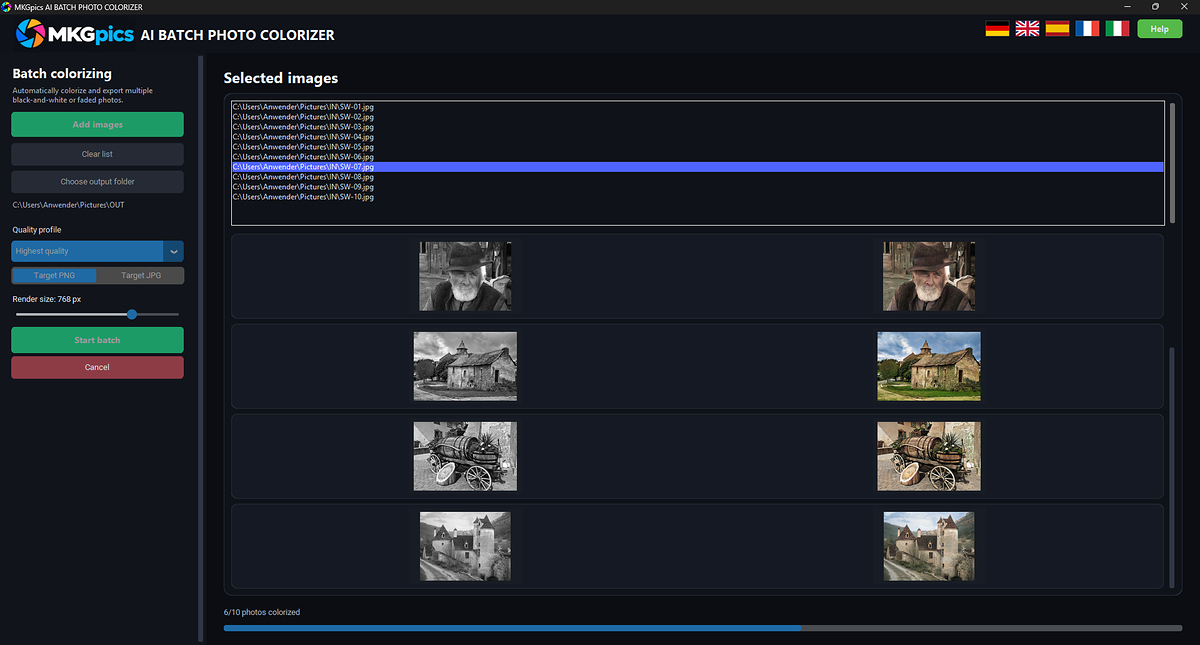
The batch works from a list of selected photos. Once processing starts, one file is colorized and saved before the next photograph is loaded. During the run, the application displays the progress of the entire series and marks the image currently being processed in the list. This makes the status of larger collections easier to follow. This type of processing works well for digitized photo albums, scanned historical photographs, and private image archives. Related files can be organized by album, period, or event and processed as separate series. Existing archive structures can therefore remain intact during colorization.
AI Photo Editing Software for Larger Photo Collections
With larger collections, the main task is less about manual corrections to one image and more about processing many files through the same workflow. The AI photo editing software processes the prepared list and saves every result after colorization. User input is concentrated on image selection, quality profile, output format, and destination folder. A complete photo series can then run without repeated saving or restarting between individual files. Once the batch is complete, the generated colorized images are collected in the chosen output folder. Additional groups can later be processed with different settings or another output format.
Three Quality Profiles for Photo Colorization
Three quality profiles with different render sizes are available for color calculation. The Recommended profile uses 256 pixels, High Quality uses 512 pixels, and Highest Quality uses 768 pixels. The profile is selected before the batch starts and applies to the complete image group.
- Recommended – 256 px: Standard profile for color calculation.
- High Quality – 512 px: Larger render size for processing.
- Highest Quality – 768 px: Largest available render size.
Render size determines the internal size used for color calculation and should not be mistaken for restoring image detail that was never present in the source photograph. Before processing a large collection, a small selection can be tested with different profiles. The preferred profile can then be used for the remaining image series.
Colorize Black-and-White Images from the Same Folder
Related photographs are frequently already stored in the same folder. The application can select multiple files and can also load all images from a chosen directory. A digitized album or complete photo series can therefore be added to the batch list as one group. This approach supports an existing archive structure. A folder may contain photographs from one journey, a family event, or a particular period. The generated colorized versions are then saved in the selected output folder while the source files remain in their original location.
Save Colorized Photos as PNG or JPG
Finished colorized images can be saved as PNG or JPG. The target format is selected before processing and then used for all files in the current batch. There is no need to save or convert each photograph separately after colorization.
| Format | Typical Use |
|---|---|
| JPG | Photo collections, websites, digital albums, and general image output |
| PNG | Archiving and further image editing without additional JPG compression |
JPG is widely used for photo collections and digital albums. PNG can be useful when the generated files will be edited again later or stored without additional JPG compression. Separate image groups can also be processed in different batches with different output formats.
Track Progress While Colorizing Multiple Images
For a large batch, processing status becomes an important part of the workflow. The application shows how many photos have already been colorized and how many files belong to the current selection. The image currently being processed is also marked in the list. This makes it easier to follow a longer run without repeatedly checking the output folder. After processing ends, the application reports how many images were saved. If individual files could not be processed, those errors are listed separately. Successfully processed images remain complete and do not need to be repeated together with the failed files.
Stop a Batch When Necessary
An active batch can be stopped if the wrong image group was selected or if another quality profile should be used for the next run. Processing stops after the current file. Colorized images that were already saved remain available. The remaining photos can then be reorganized and processed in another batch. With very large archives, this prevents an unsuitable selection from having to continue to the end. Completed files can simply be left out of the next list.
Colorize Photos with AI and Archive Them Separately
Saved results receive a designation that identifies them as colorized versions. This helps distinguish them from the source files and allows them to be stored in a separate output folder. For historical photo archives, separating the original and the colorized interpretation is important because the two files carry different meanings. The black-and-white photograph remains the original source, while the colorized file represents an additional interpretation. Both versions can later be archived, compared, or used for different purposes without replacing the original image.
A Consistent Workflow for Colorizing Black-and-White Photos
| Step | Process |
|---|---|
| 1. Select Images | Prepare black-and-white or faded photos for processing. |
| 2. Choose Quality Profile | Select Recommended, High Quality, or Highest Quality. |
| 3. Select Output | Choose PNG or JPG as the target format. |
| 4. Choose Output Folder | Select where the colorized versions should be saved. |
| 5. Start Batch | Colorize the prepared image list in sequence. |
| 6. Check Progress | Follow the current photo and the status of the complete series. |
| 7. Open Results | Review the saved colorized images in the output folder. |
The table summarizes the complete process from image selection to the saved colorized version. The main settings are chosen before processing begins. During the batch, the application moves through the files automatically and saves every successfully colorized photograph. The AI batch photo colorizer can process related scans with shared settings while keeping the colorized copies separate from the source collection.
Automatically Colorize Multiple Black-and-White Photos
For larger image collections, the value of batch colorization comes from preparing the complete series once. Multiple black-and-white or faded photos can be grouped, processed with one quality profile, and saved as separate colorized files. The workflow remains the same regardless of how many images are included. MKGPics AI BATCH PHOTO COLORIZER combines automatic AI photo colorization, image-list processing, quality profiles, progress tracking, and PNG or JPG output. The application focuses on series processing and can therefore be used to work through digitized photo albums or larger black-and-white collections step by step.